Saturday, 28 February 2015

Six tips to improve your Google calendar usage


Google Calendar is the favourite up-to-date organization tool. like other Google’s services, Google Calendar has flexibility which lets you work faster and more efficiently. With Gmail, separate calendars for work, school or personal affairs, keep them together in the same view, and share your calendar with colleagues.

1. Keyboard shortcuts


Navigating around a calendar should be fast and easy.

Shortcut KeyAction
Navigation
k or pMoves your calendar view to the previous date range
j or nMoves your calendar view to the next date range
rRefreshes your calendar
tMoves you to the current day
Views
1 or dDisplays your calendar in the 'Day' view
2 or wDisplays your calendar in the 'Week' view
3 or mDisplays your calendar in the 'Month' view
4 or xDisplays your calendar in the 'Custom' view
5 or aDisplays your calendar in the 'Agenda' view
Actions
cAllows you to create a new event
eAllows you to view an event's details
Backspace or DeleteDeletes the event
ctrl + z / command + z or zUndo last action (if possible)
ctrl + s / command + sSave event (from event details page)
EscReturn to calendar grid (from event details page)
Application
/Places your cursor in the search box
shift += or +Focus on 'Add a calendar' text box under 'Other calendars'
qOpens "Quick Add"
ctrl + p or command + pPrints the current view
sBrings you to your Google Calendar settings page
ctrl + ? / command + ? or ?Brings up a menu of keyboard shortcuts

2. Receive an email with your agenda


If your schedule is busy, you can receive your google agenda by mail, share it, modify it or duplicate it. Go to settings, Calendars tab, then click on the “Notifications” of the agenda.

Receive an email with your agenda

3. Add a Different Time Zone


You can get Google Calendar to display multiple timezones. To change this, hit S to head to "Settings" menu. Under the "General" tab you can see "Your current time zone." Click on "Show an additional time zone," and then tick the box "Display all time zones."

Add a Different Time Zone


4. Customise view the view of your Google calendar

Set the view of your calendar, depending on whether you prefer a display of “4 days, 5 days or more”. Choose between 2-7 days and 2-4 weeks.
Hit s for settings and scroll down to "Custom view"

5. View your tasks in your Google Calendar

Google Calendar allows you to view your tasks in your calendar. In the left pane, in "My calendars" check the “Tasks” box. Google Calendar allows you to assign a deadline to a task, which will be displayed in your calendar.

View your tasks in your Google Calendar

6. Add public holidays to Google calendar

Integrate public holidays or special events to your Google Calendar. Depending on countries and cultures, the holidays or public holidays can be very different. In the left pane, click "Other Calendars" and "Browse interesting calendar".

Add public holidays to Google calendar

Thursday, 8 January 2015

How I use VPN on Android

In the comany I work for we are providing VPN connection to our employees. To set up the VPN connection using pre shared key, I use following settings on my LG G3 phone.
Settings --> Networks --> Tethering &networks --> VPN --> Add VPN network

VPN field:
Name: Work
Type: IPSec Xauth PSK
Server: VPN  IP.
IPSec identifier: Connection profile
IPSec pre-shared-key: Secret key.


Friday, 24 October 2014

Export MySQL data to CSV file


As much as importing data into MySQL is helpful, you also might like to export your data to CSV file format that is widely supported. You can open your data with spreadsheet like Excel, Libreoffice Calc, Google sheets and more. There are various techniques of how to export a MySQL table to a CSV file, but I'm going to demonstrate two methods.

Method 1: MySQL

Following SQL query will dump all the records from a table called "person" into the file /tmp/export_person.csv as a CSV file.
SELECT * from person INTO OUTFILE '/tmp/export_person.csv' FIELDS TERMINATED BY ',' OPTIONALLY ENCLOSED BY '"' LINES TERMINATED BY '\n' FROM test_table;
Take note of that the directory must be writable by the MySQL database server. Also that it will not overwrite the file if it already exists.

Method 2: Command line

You can also use command line in Linux to get your report. To get the same data as the example above
$ mysql -u dbusername -pdbpassword exampledb -B -e "select * from \'person\';" | sed 's/\t/","/g;s/^/"/;s/$/"/;s/\n//g' > export_person.csv
  • mysql : the executable file (should be where MySQL is installed)
  • -u dbusername : a switch and option for the username to execute the SQL with
  • -p dbpassword : a switch and option for the password of the user
  • exampledb : the database to run the SQL against
  • -B : instructs that the output should be tab delimited (we will convert this to commas later in the command)
  • -e “the sql statement here” : the SQL statement to run returning your data
  • | sed ’s/\t/”,”/g;s/^/”/;s/$/”/;s/\n//g’ : sed is a Unix stream processor, essentially allow for transformations in this case. Here we have four sed commands that change the tabs to double quotes, adds double quotes to the beginning and end of each line and adds a new line marker at the end of each line.
  • > export_person.csv : outputs the results to the file named export_person.csv
I hope that this is somewhat helpful.

See also Import csv to MySQL
Monday, 13 October 2014

I'm not much of a windows fan.

This is how I pemanently "fix" my Windows computer's

Sunday, 7 September 2014

Google Play Store settings you might like to turn off


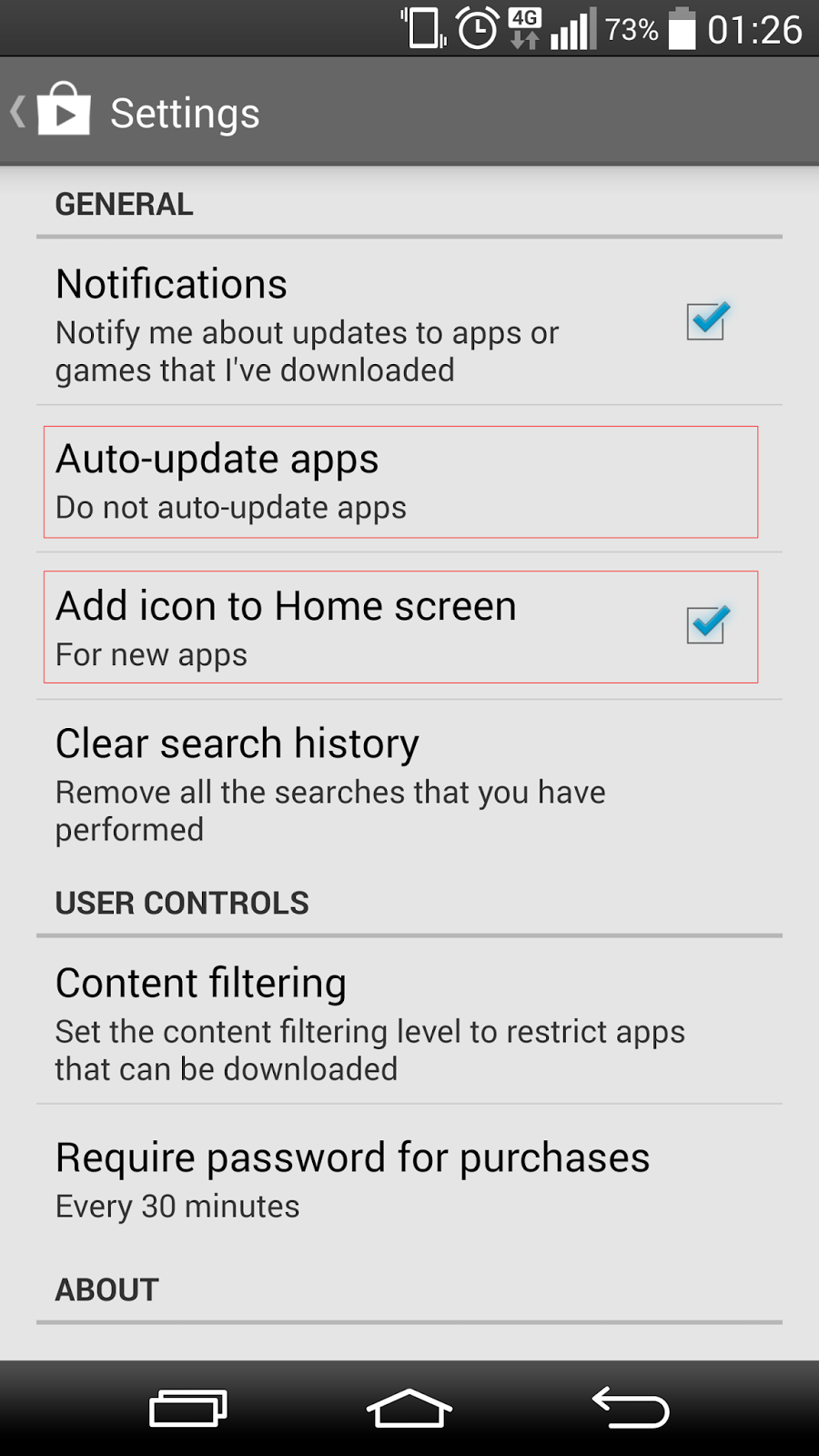
There are two settings in Google Play Store I like to turn off on my phone, the “shortcut on homscreen” and Auto-update apps. I really do not like to add a shortcut to my homescreen for each and every application that I ever download.
  • Open up the Google Play Store app on your phone or tablet
  • Slide out the menu from the left of the screen
  • Open "Settings"
  • Under "General" you'll find an option to "add icon to home screen"
  • Make sure the checkbox is unticked
From now on out you'll not be filling up your home screen with dozens and dozens of apps as you install them.
Next step is to control how you update your apps. Open up the Google Play Store app on your phone or tablet
  • Slide out the menu from the left of the screen
  • Open "Settings"
  • Under “Auto-update apps” you'll find options to control when you update.
  • I prefer “Do not auto-update apps”


Monday, 21 April 2014

css for Keyboard input tag kbd


Describing a keyboard shortcut can be done by using the tag <kbd>, it is a phrase tag and defines keyboard input in the browser's default monotype font.
By using css you can make the code look like a key button's
 kbd {
padding: .1em .6em;
border: 1px solid #ccc;
font-size: 10px!important;
font-family: Arial,Helvetica,sans-serif;
background-color: #f7f7f7;
color: #333;
-moz-box-shadow: 0 1px 0 rgba(0,0,0,0.2),0 0 0 2px #fff inset;
-webkit-box-shadow: 0 1px 0 rgba(0,0,0,0.2),0 0 0 2px #fff inset;box-shadow: 0 1px 0 rgba(0,0,0,0.2),0 0 0 2px #fff inset;border-radius: 3px;
display: inline-block;
margin: 0 .1em;
text-shadow: 0 1px 0 #fff;
line-height: 1.4;
white-space: nowrap;
}
Example:
<kbd>ctrl</kbd>+<kbd>p</kbd>

ctrl+p

That looks better.
Monday, 3 March 2014

How to install rpm packages on ubuntu or mint

Installing rpm packages on ubuntu, mint, or debian

The suggested method to install software or deb packages on Ubuntu/Mint linux is via Synaptic, Ubuntu Software Center/ppa, or an apt-get command from the terminal.
You might sometimes need to install rpm package to your ubuntu/mint linux/debian box, there is a utility called Alien, Alien converts an RPM package file into a Debian package file or Alien can install an RPM file directly.

Install Alien
Open your terminal CTRL+T and enter this line.
sudo apt-get install alien

Installing RPM package directly
sudo alien -i package_name.rpm

Converting the RPM file to a Debian package
sudo alien package_name.rpm

Installing the converted Debian package
sudo dpkg -i package_name.deb

For additional Help, use
alien -h